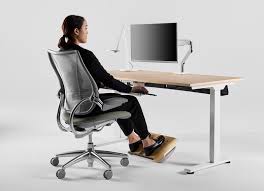
Finding the right setup for your home office is key. It helps you work better and feel better. This guide covers how to achieve a comfortable and safe workspace. It aims to boost your focus and avoid discomfort. You will learn about common issues. You will also find simple steps to create an ergonomic office at home.
Understanding Home Office Ergonomics
Ergonomics is all about fitting your workspace to you. It’s not about fitting yourself to the workspace. Think of it like a glove. It fits your hand perfectly. A good ergonomic setup does the same for your body. It helps prevent strain. It makes work feel easier. It can even make you more productive. When you are comfortable, you can focus more. You don’t get tired as fast.
Why does this matter so much? Many of us spend hours at a desk. We sit, we type, we click. Our bodies are not meant for sitting still for so long. Without the right support, parts of our body get overused. Other parts don’t get used enough. This leads to stress. This stress can turn into pain. It can affect your wrists, neck, shoulders, and back. Poor posture is a big cause of this. It puts extra pressure on your spine. It can also hurt your muscles and nerves.
A well-designed home office helps your body stay in a natural, relaxed position. This means your joints are not bent too much. Your muscles don’t have to strain. Your body feels supported. This all adds up to a healthier way to work. It’s about making smart choices for your body’s well-being. This is especially true now. More people are working from home. So, making that space work for us is very important.
Key Ergonomic Principles
Posture: Sit up straight. Your feet should be flat on the floor. Your knees should be at a 90-degree angle.
Your back should be supported by your chair.
Reach: Keep your most used items close by. This means less reaching and twisting.
View: Your screen should be at eye level. This prevents neck strain.
Movement: Take breaks. Stand up. Stretch.
Move around.
My Own Home Office Wake-Up Call
I used to think my home office was pretty good. I had a desk. I had a chair. I had a laptop. What more could I need, right? I was wrong. After a few months of working from home full-time, I started to feel it. First, it was a dull ache in my neck. Then, my wrists felt tired even when I wasn’t typing much. I’d catch myself slouching. My shoulders felt tight and knotty.
One evening, I was working late. I leaned forward to see the screen better. My back protested loudly. It felt like a sharp, sudden pain. I remember thinking, “This is not normal.” I was only in my early 30s! I realized my setup was hurting me. My laptop screen was too low. My chair didn’t offer enough support. My keyboard and mouse were too far away. I was constantly reaching.
It was a wake-up call. I couldn’t ignore the discomfort anymore. I spent hours researching. I looked at pictures of ideal home offices. I read about different chairs and desks. I felt a bit overwhelmed. There were so many options and terms. But I knew I had to do something. My health and my ability to work were on the line. I started making small changes. I moved my laptop onto some books. I got a separate keyboard and mouse. I adjusted my chair height. Slowly, very slowly, things started to feel better. The pain lessened. My posture improved. It was proof that small changes make a big difference.
Creating Your Ergonomic Workspace
Let’s break down how to build a better home office. It’s not about buying the most expensive gear. It’s about making smart choices for your body.
Your Chair: The Foundation
Your chair is perhaps the most important piece. It supports your entire body. Look for a chair with good lumbar support. This is the curve in your lower back. The chair should let you adjust the height. Your feet should rest flat on the floor. If they don’t, use a footrest. The armrests should let your shoulders relax. They should not force you to hunch.
You should be able to sit all the way back. Your back should touch the chair’s backrest. The seat should not press into the back of your knees. There should be a small gap there. This helps blood flow.
Chair Adjustment Quick Guide
- Height: Adjust so your feet are flat. Knees are at 90 degrees.
- Lumbar Support: Should fit the curve of your lower back.
- Armrests: Let your shoulders relax. Should not be too high or low.
- Seat Depth: Allow 2-3 fingers between seat edge and knees.
Your Desk: The Right Height
The height of your desk matters a lot. When your arms rest on the desk, your elbows should be bent at about 90 degrees. Your shoulders should be relaxed, not raised. If your desk is too high, you might find yourself shrugging your shoulders. If it’s too low, you might hunch forward.
Many desks aren’t adjustable. If yours isn’t, you can sometimes adjust the chair height. Or you might need to place something under the desk legs. This is rare, though. Usually, it’s about adjusting the chair. Or finding a desk that’s the right height for you.
Your Monitor: Eye Level is Key
This is a big one for neck pain. Your monitor should be directly in front of you. The top of the screen should be at or just below your eye level. This means you look slightly down at the screen. You shouldn’t have to crane your neck up or bend it down.
If you use a laptop, this is where it gets tricky. The keyboard is attached. So, moving the screen up often means moving the keyboard further away. This is why many people use a laptop stand. They also use an external keyboard and mouse. This lets them set the screen at the right height. Then they can position the keyboard and mouse where they belong.
Monitor Setup Tips
- Position: Directly in front of you.
- Distance: About an arm’s length away.
- Height: Top of screen at or below eye level.
- Tilt: Slightly tilted back to reduce glare.
Keyboard and Mouse: Natural Hand Position
These are your main tools for typing and clicking. They should be placed so your wrists are straight. Not bent up, down, or sideways. Your elbows should stay close to your body. Your forearms should be parallel to the floor.
Many people use an external keyboard and mouse. This gives them more control over placement. They can put them closer to their body. They can also choose keyboards that are shaped differently. Some keyboards have a split design. This helps keep wrists straighter. Mouse choice also matters. Some mice are vertical. They can help keep your hand in a more natural handshake position.
Consider a wrist rest. But use it only when you are not typing. It’s meant to support your wrist between typing bursts. It’s not for resting your wrists on while you type. Typing with your wrists resting can actually put pressure on nerves.
Lighting: Less Strain on Your Eyes
Good lighting helps reduce eye strain. You don’t want glare on your screen. Glare comes from light sources reflecting off your screen. This can be windows or overhead lights.
Try to position your screen so it’s not facing a window directly. Or facing away from a window directly. Side lighting is often best. If you use a desk lamp, make sure it doesn’t shine directly on your screen. It should light up your workspace.
Natural light is great when you can get it. But too much direct sunlight can cause glare. You might need blinds or curtains. Also, make sure the light isn’t too dim. You don’t want to strain your eyes to see.
Lighting Comparison
| Good Lighting | Bad Lighting |
|---|---|
| Soft, diffused light | Harsh, direct light |
| No glare on screen | Screen with bright reflections |
| Balanced brightness | Too dark or too bright |
| Light source behind or to the side of you | Light source directly in front or behind screen |
Common Home Office Ergonomic Mistakes
Many people make the same few mistakes. They often don’t realize they are doing it. Fixing these common issues can make a huge difference.
One big mistake is the laptop on the coffee table. Or on the couch. This is often how people start. It’s easy. It feels cozy. But it’s terrible for your posture. Your screen is too low. You hunch over. Your neck is bent at a sharp angle. Your wrists are often angled awkwardly. This is a recipe for pain.
Another common error is the “all-in-one” desk. These desks often have shelves and drawers everywhere. They look neat. But they can force you into bad positions. You might reach too far for things. You might have to twist to get to your printer. The keyboard tray might be too high or too low.
Many people forget about movement. They sit for hours straight. They think the setup is all that matters. But your body needs to move. Sitting in the perfect ergonomic position for 8 hours is still not great. You need to stand up. You need to stretch. You need to walk around.
Using a chair that isn’t meant for desk work is also common. A dining chair or a kitchen stool might seem fine at first. But they often lack the right support. They don’t have adjustable features. They can quickly lead to back pain and discomfort.
Finally, people often ignore warning signs. A little stiffness is normal, right? Not always. If you feel pain that lasts, or gets worse, it’s a sign something is wrong. Ignoring it only makes the problem bigger.
Myth vs. Reality
Myth: My setup looks good, so it must be ergonomic.
Reality: True ergonomics is about how your body feels and moves, not just how it looks. What feels comfortable might not be healthy long-term.
Myth: I need to buy expensive ergonomic equipment.
Reality: Often, simple adjustments to your current setup can solve most problems. Books to raise a monitor, or a pillow for back support, can help.
Myth: A little pain is just part of working hard.
Reality: Pain is your body’s way of telling you something is wrong. Persistent pain needs attention, not just pushing through.
The Role of Movement and Breaks
Even with the perfect ergonomic setup, your body still needs movement. Sitting still for too long is bad for circulation. It makes muscles stiff. It can lead to fatigue.
Experts often suggest the 20-20-20 rule for eye strain. Every 20 minutes, look at something 20 feet away for 20 seconds. This gives your eye muscles a break.
For your body, try to take short breaks every 30-60 minutes. Stand up. Walk around. Stretch your arms and legs. Do some simple neck rolls or shoulder shrugs. Even just standing at your desk for a few minutes can help.
If you have a standing desk, alternate between sitting and standing. Don’t try to stand all day. It can cause its own problems. A good balance is key. Your body will thank you for the changes in position.
Think about simple exercises you can do at your desk. Arm circles, leg extensions, or gentle twists. These can help keep your blood flowing. They can relieve muscle tension. Setting a timer can be a good reminder. Many apps can help with this.
Movement Breakdown
- Every 20 mins: 20-20-20 eye break.
- Every 30-60 mins: Stand up and move for 2-5 minutes.
- Daily: Incorporate longer stretches or walks.
- Throughout the day: Use different positions if possible (sitting, standing).
When to Seek Professional Help in
Sometimes, the discomfort is more than just a little stiffness. If you have tried making changes and still feel pain, it’s time to look for help. This is where local resources become valuable.
If you are in and struggling with your home office setup, consider an ergonomic consultation. These professionals are trained to assess your workspace. They can also look at how you work. They can spot issues you might miss.
An ergonomist or a physical therapist specializing in workplace wellness can offer personalized advice. They can recommend specific adjustments. They might suggest special equipment. They can also teach you exercises. These exercises target your specific problem areas.
Look for services that offer home office assessments. Some companies might even have mobile services that come to you. This is great because they can see your actual setup. They can provide guidance in your real work environment.
When you search for help, look for terms like “ergonomic assessment “. Or “workstation setup “. Read reviews. See if they have experience with home offices.
Don’t wait for pain to become severe. Early intervention is always best. A professional can help you avoid long-term issues. They can help you create a truly sustainable and healthy work environment. This investment in your health can pay off for years to come. It means you can continue working productively and comfortably. It means you can enjoy your work without constant physical complaint.
Finding an Ergonomist in
- Search Online: Use terms like “ergonomic consultant ” or “physical therapist workstation assessment “.
- Check Professional Associations: Organizations like the Human Factors and Ergonomics Society might list certified professionals.
- Ask Your Doctor: Your physician may be able to recommend specialists.
- Read Reviews: Look for testimonials from other clients who had similar needs.
- Inquire About Services: Ensure they offer home office specific assessments.
Quick Fixes and Smart Habits
You don’t always need big changes. Small habits and simple fixes can make a big difference in how you feel.
First, try to position your keyboard and mouse closer to your body. This reduces the need to reach. Keep them at a height where your elbows are bent at about 90 degrees. Your forearms should be mostly flat.
If your feet don’t reach the floor, use a small footrest. This can be a sturdy box or a dedicated footrest. It helps you maintain a good seated posture.
Use your chair’s features. If it has adjustable lumbar support, use it. Adjust the backrest so it supports your lower back curve. Don’t be afraid to adjust your chair throughout the day. Your body changes position.
For your monitor, if you can’t get it to eye level, use books or a stand. Even stacking a few thick books can work wonders. For laptops, consider a portable laptop stand.
Keep your workspace tidy. A cluttered desk can lead to awkward reaching. It can also be distracting. Have only the essential items within easy reach.
Try to stand up and stretch during commercials if you’re watching TV later. Or during a short phone call where you don’t need to type. Integrate movement into your day.
Finally, listen to your body. If something feels uncomfortable, try to change it. Don’t just live with it. Small adjustments are often all that is needed.
Smart Habits for a Healthier Day
Desk Declutter: Only keep essentials on your desk. Put other items away.
Reach Less: Keep frequently used items like your phone or notepad within easy reach.
Hydration Station: Keep water nearby. This encourages sips and short breaks to refill.
Movement Cues: Place sticky notes to remind you to stretch or stand up.
Listen In: Pay attention to how your body feels. Adjust as needed.
Frequently Asked Questions About Home Office Ergonomics
Is an ergonomic chair really worth the money?
Yes, for many people, an ergonomic chair is a worthwhile investment. It provides crucial support that standard chairs lack. This can prevent pain and improve posture, leading to better long-term health and productivity.
However, sometimes simple adjustments with your current chair can also help.
How often should I take breaks from my desk?
It’s recommended to take short breaks every 30 to 60 minutes. During these breaks, stand up, walk around, and stretch. Also, use the 20-20-20 rule for your eyes: every 20 minutes, look at something 20 feet away for 20 seconds.
My wrists hurt when I type. What can I do?
Ensure your keyboard is at the right height, so your forearms are parallel to the floor and your wrists are straight. Avoid resting your wrists on a hard surface while typing. Consider a wrist rest, but use it only between typing sessions.
A keyboard with a different shape might also help.
What if my desk is too high or too low?
If your desk is too high, you might need to adjust your chair height upwards and use a footrest to keep your feet flat. If your desk is too low, try raising your chair and using a footrest. Sometimes, placing sturdy blocks under desk legs can help, but this is less common.
Can glare on my computer screen cause long-term damage?
While glare itself might not cause permanent physical damage, it can lead to significant eye strain, headaches, and fatigue. This makes it harder to concentrate and can negatively impact your work and well-being. Positioning your monitor correctly and managing light sources helps prevent glare.
What is the best way to set up a small home office space?
For small spaces, focus on maximizing the use of vertical space and choosing multi-functional furniture. A wall-mounted desk or a corner desk can save floor space. Ensure your primary setup (chair, desk, monitor) is ergonomically sound, even if it’s compact.
Keep the area tidy to avoid clutter.
Conclusion
Creating an ergonomic home office is a journey, not a destination. It’s about making mindful choices that support your body. You don’t need a complete overhaul overnight. Start with small, practical changes. Focus on your posture, your screen height, and your keyboard and mouse position. Remember to move often. Take breaks. Your body will thank you for it. A comfortable workspace means a more focused, productive, and pain-free work life. This is achievable for anyone.